
Knowing the actual amount of remaining fuel
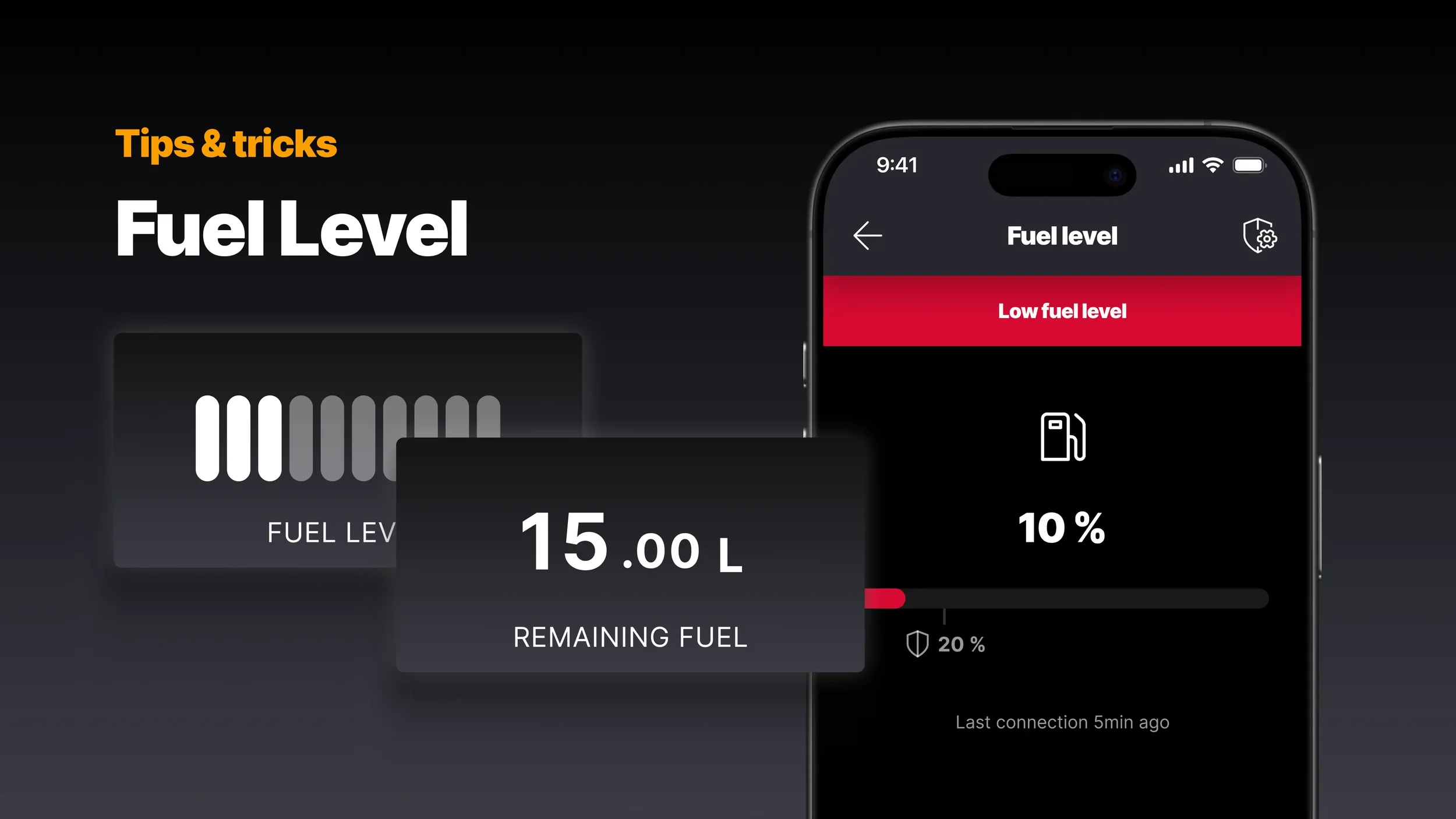
Running out of fuel on the water is one of those things that always happens at the worst possible moment. Engine stops, you are drifting, and the nearest fuel station might be several nautical miles away. A tow back to the marina is expensive, slow, and not exactly how you pictured spending a sunny day on the water.
Q Display and Q App give you two ways to keep track of what's in the tank. To make the most of them, it helps to understand why the fuel level sensors you're probably relying on tells only part of the story.
Why do the fuel sensors let you down
Every boater knows the feeling. You're out on the water, the fuel gauge is showing somewhere around 30% or less, and you're not entirely sure whether to trust it. That uncertainty is not a calibration problem or a faulty sensor. It's built into the way most boats are designed.
Most recreational boats measure fuel level with a float sensor inside the tank, the same basic principle as a car. The float rises and falls with the fuel level and sends a signal to the Q Display. Simple enough.
The problem is the tank's shape. Boat fuel tanks are typically fitted into the hull, which means they follow the shape of the hull. And hulls are rarely flat at the bottom. Many tanks are effectively V-shaped, narrowing toward the keel. As the fuel level drops into that V, the volume of fuel decreases much faster than the float height would suggest.
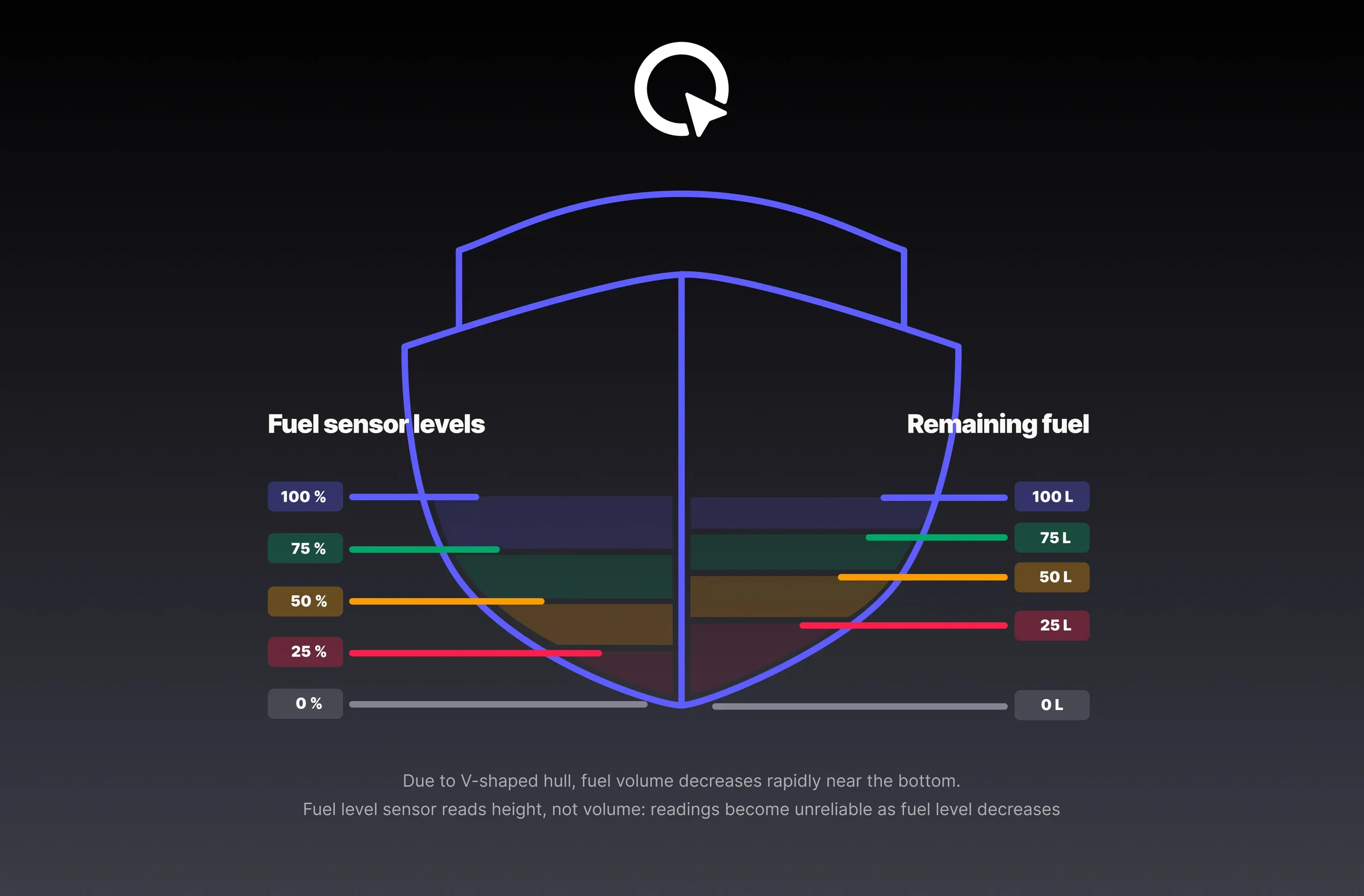
In practice, this means the float sensor could read, for example, 20% when there's actually a fraction of that volume left. The lower the fuel level, the less reliable the reading, which is exactly the wrong way around.
Q Display shows fuel sensor levels in 10% steps, and a reading of 20% could mean anything from a comfortable margin to almost nothing, depending on your tank shape, which the fuel float sensor knows nothing about. The moment you most need accurate information is the moment the sensor is least able to provide it.
The same issue applies at the top end. In many tanks, the float can't reach the very top of the tank, so the sensor level reads something like 90% even when the tank is completely full. It's not broken. It's just the geometry.
If your sensor is reading incorrectly
If the fuel gauge seems consistently off, it may be a sensor type mismatch. In Settings → Boat settings, you will find Fuel sensor settings. You can select none, A, E, or NMEA, depending on your sensor’s type.
The most common fuel level sensors are analogue ohm-based. A and E type sensors are mirror images of each other: an A type reads full when resistance is at its maximum, an E type reads full when resistance is at its minimum. If your gauge reads backwards, switching between A and E will likely fix it.
A more reliable way to track fuel
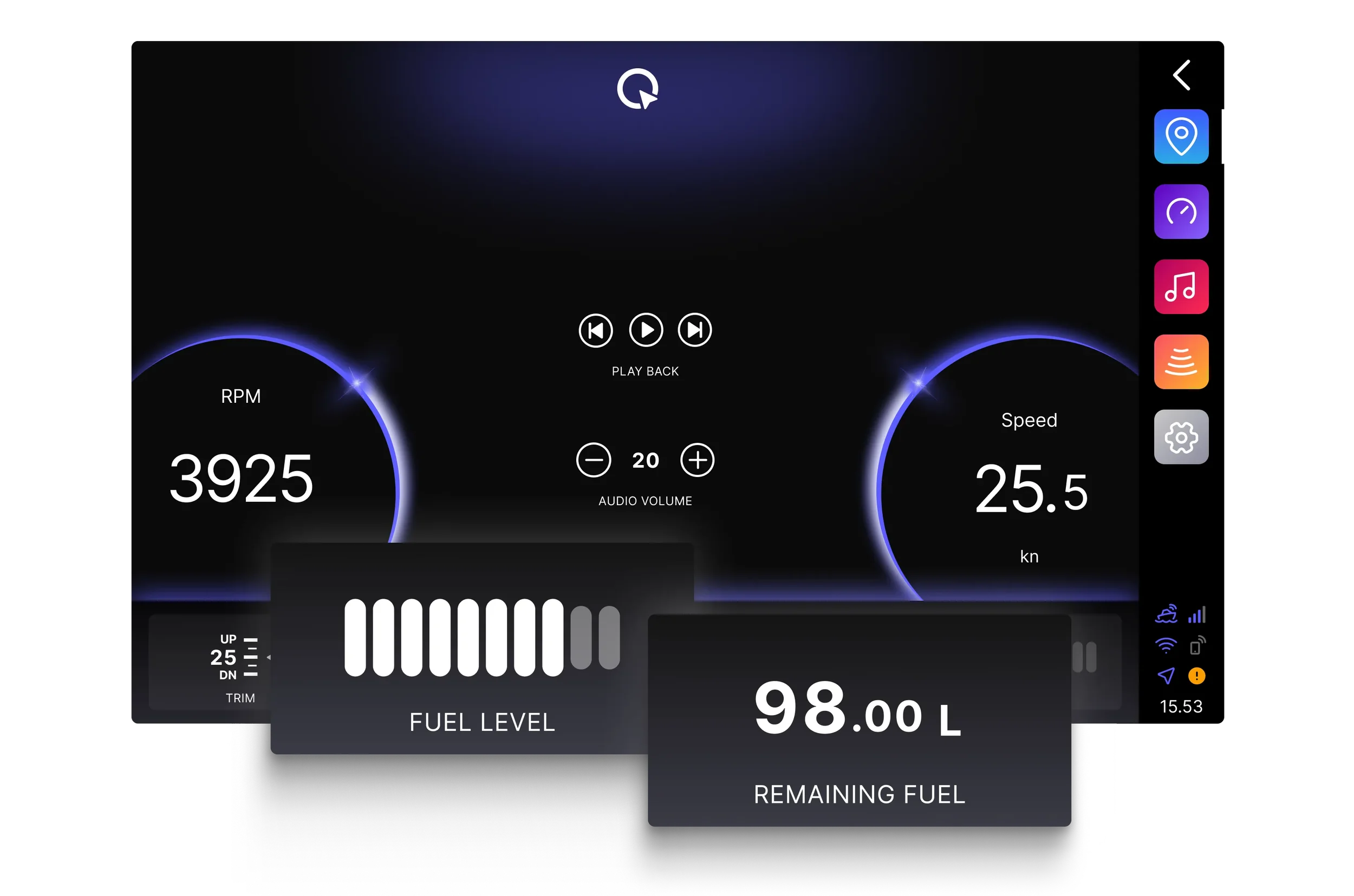
Q Display offers an alternative. When you're out on the water, the display receives accurate fuel consumption data directly from the engine, showing how much fuel is being burned in real time. Rather than measuring what's in the tank, it calculates what's been used since the last fill-up.
To use this, first make sure your tank size is set in Settings → Boat settings. Then add the Remaining fuel widget to your dashboard or chart view. The next time you fill up, double-tap the widget to reset it. The display sets the starting value to your full tank capacity and begins counting down from there as you use fuel.
The result is a consumption-based fuel reading that runs alongside the float sensor. The sensor gives you a rough indication; the widget gives you a calculated figure you can actually plan around.
Just remember to reset
The Remaining fuel widget is only as accurate as the last reset. Every time you add fuel, double-tap the widget to reset the fuel amount to full. Make it part of your fuelling routine, and the widget stays useful all season long.
If you add fuel without filling up completely, use the arrows on the widget to adjust the amount by the exact number of litres added.
Fuel in the Q App
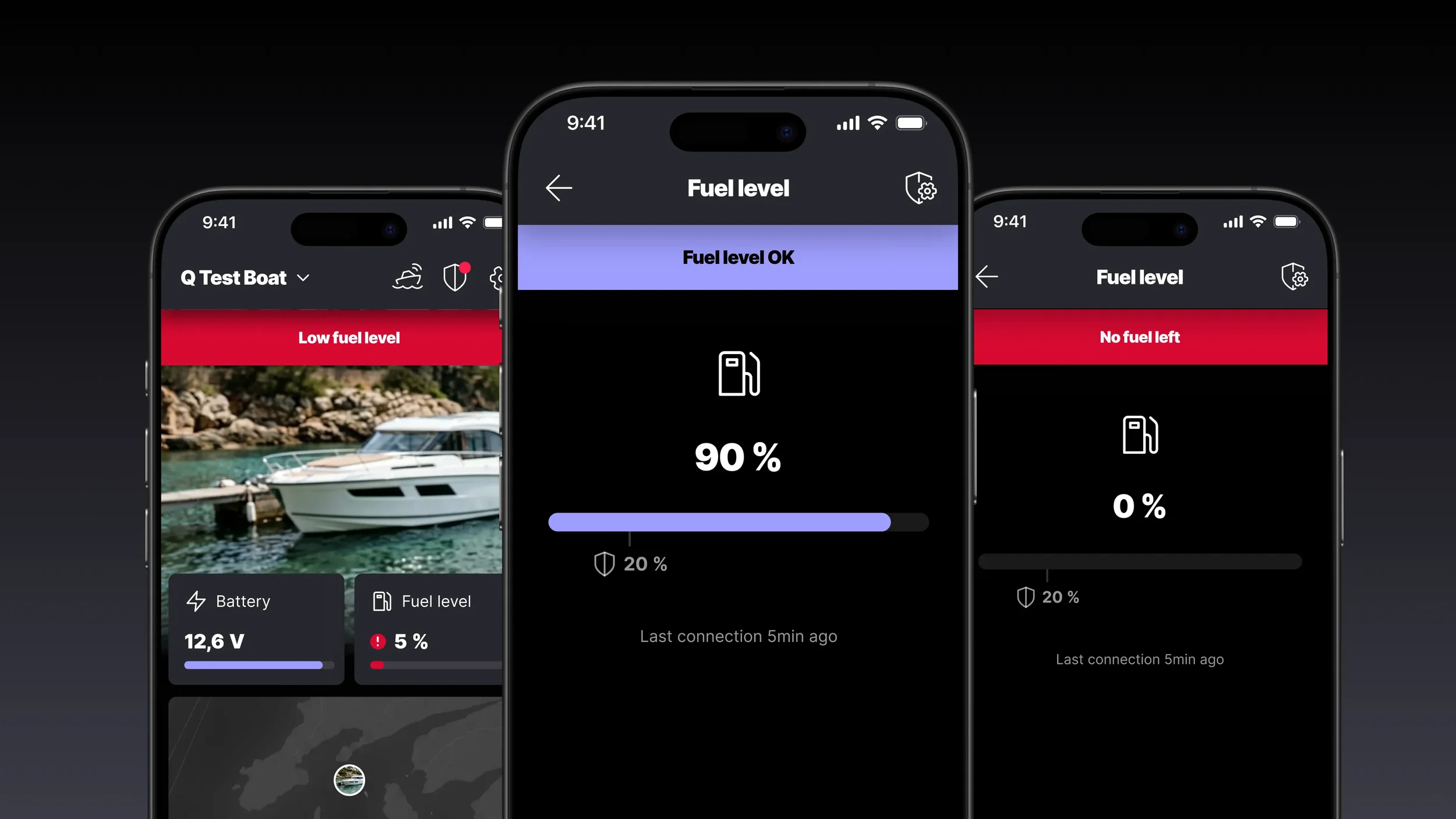
Fuel level is visible in the Q App for all users, even without an active Q Connected subscription. However, with Q Connected, the app shows your current fuel level in real time. Without it, the app shows the level from the last time your Q Display was connected to the internet, which may not reflect the current state if the boat has been in use since.
Besides showing the level, the app also alerts you if the fuel level drops below 20%, helping to notice the alarmingly low fuel state before it is too late.
Keeping track of the consumption
On the water
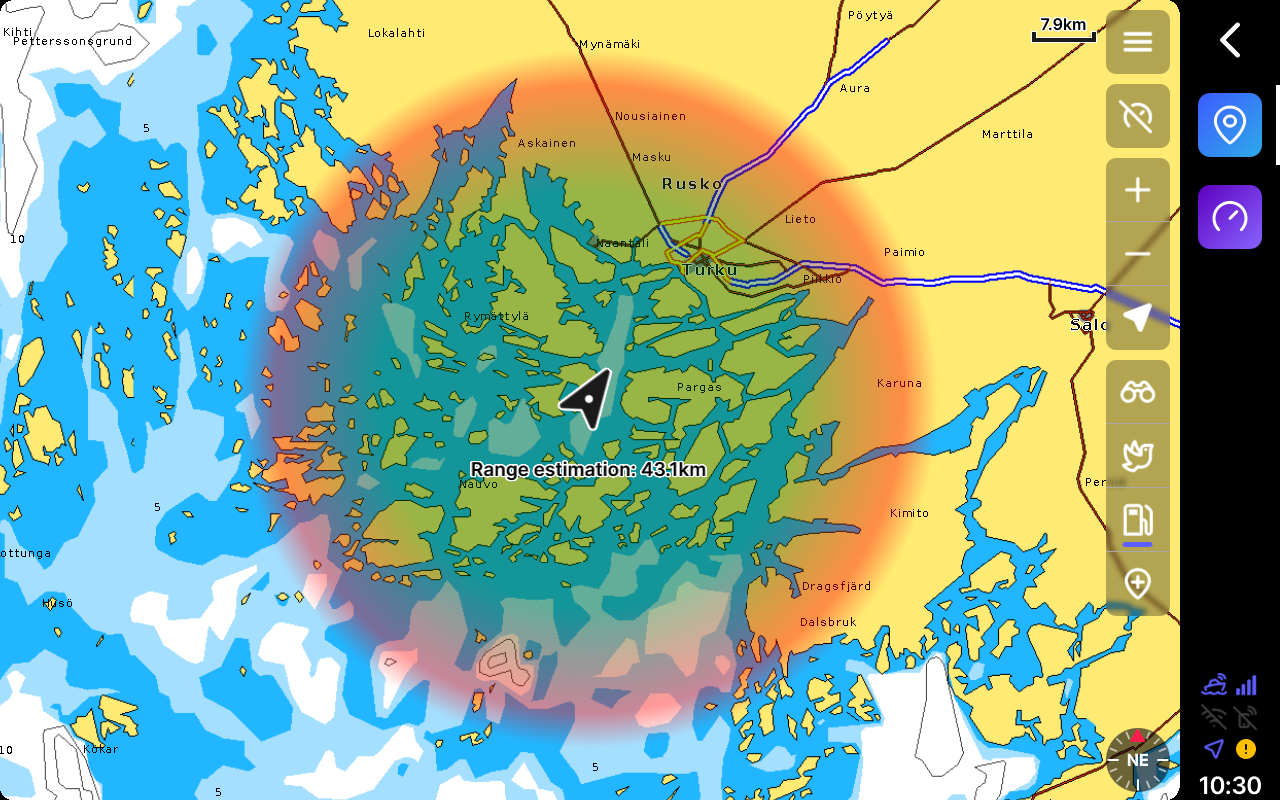
On the chart view, when the overlay gauges are hidden, you'll find a fuel canister icon in the chart actions. Tap it, and the chart zooms out to show a red circle around your boat, giving you a directional guide on how far you can go on the fuel remaining. The calculation is based on your average consumption and requires your tank size to be defined in settings. The boat needs to be underway for it to work.
At home
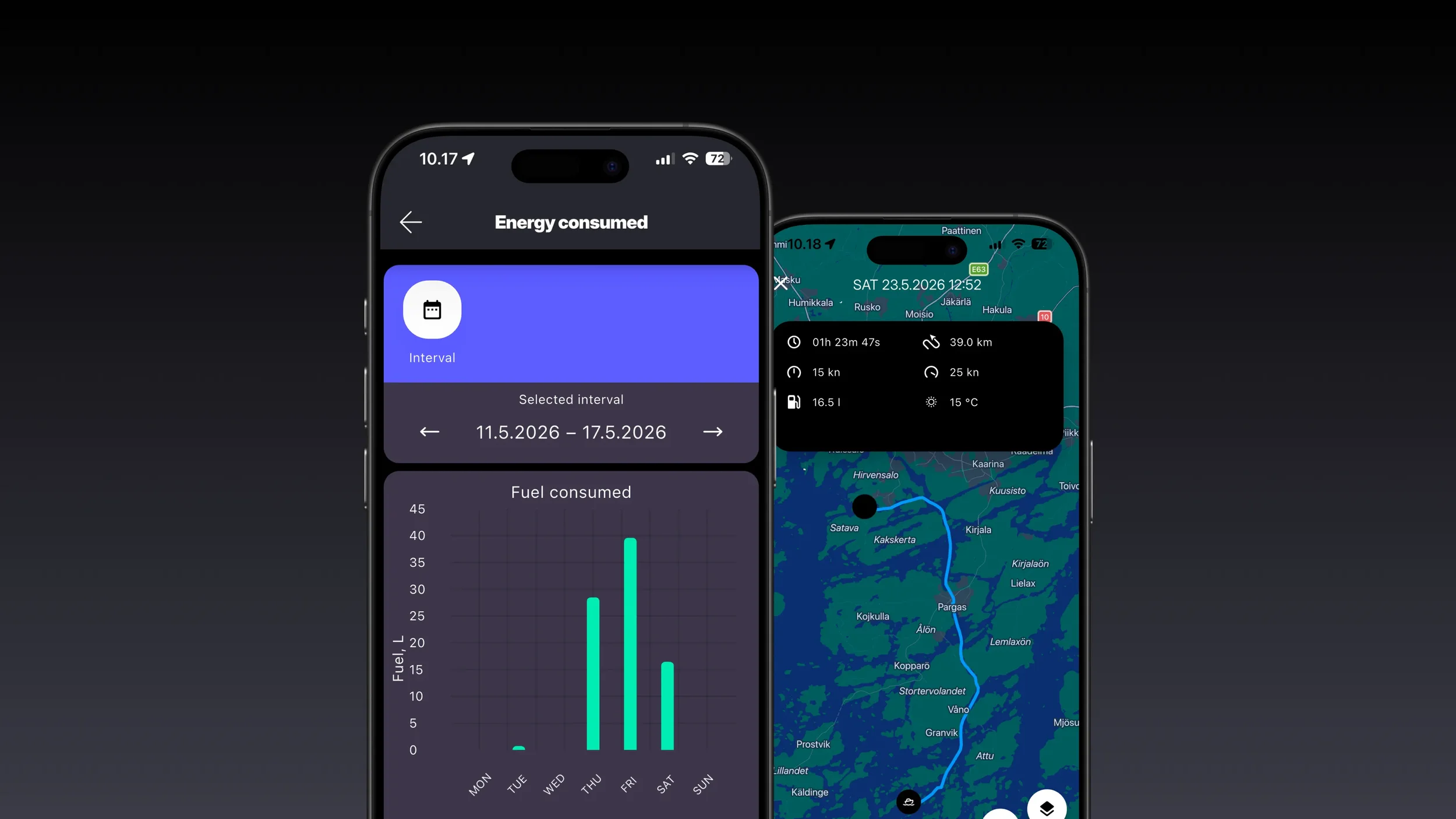
The Q App also keeps a running record of your fuel consumption. In the statistics and logbook views, you can see how much fuel has been used by trip, by day, or by week, useful for planning longer routes, tracking costs, or simply understanding how your boat performs in different conditions.
For boat owners who rent out their vessel, the fuel history is particularly useful. A quick check of the app tells you whether the tank was filled up after the rental. If it wasn't, the statistics show exactly how much fuel was used during the rental period, giving you a clear basis for any additional charge.
Get started
Fuel monitoring is most useful when it is set up before you need it. Define your tank size in Settings → Boat settings, add the Remaining fuel widget to your dashboard, and reset it the next time you fill up. From that point on, you have a calculated fuel reading running alongside the float sensor, and the Q App keeps an eye on the level whenever you are away from the boat.
Download the Q App and activate Q Connected for real-time fuel level updates wherever you are.
